21 Aug 2026
Post by Callie
Introduction
Experiencing an iPhone not showing the charging symbol when it’s dead can be quite distressing. The uncertainty whether the device is charging or not can lead to panic, especially in situations needing urgent communication. Understanding the potential causes and having a clear plan of action can bring peace of mind and usually a quick fix to the situation. This comprehensive guide is designed to walk you through various troubleshooting steps and solutions.

Understanding the Issue
Before diving into solutions, it’s essential to understand why your iPhone might not display the charging symbol. This issue can stem from several factors, primarily hardware problems such as a faulty cable or adapter, or software glitches that might prevent the display of the charging icon. Pinpointing whether the problem is hardware or software-related helps streamline the issue-solving process.
Once you grasp the core of the problem, you can take logical steps to correct it, starting with simple checks before moving on to more technical solutions.
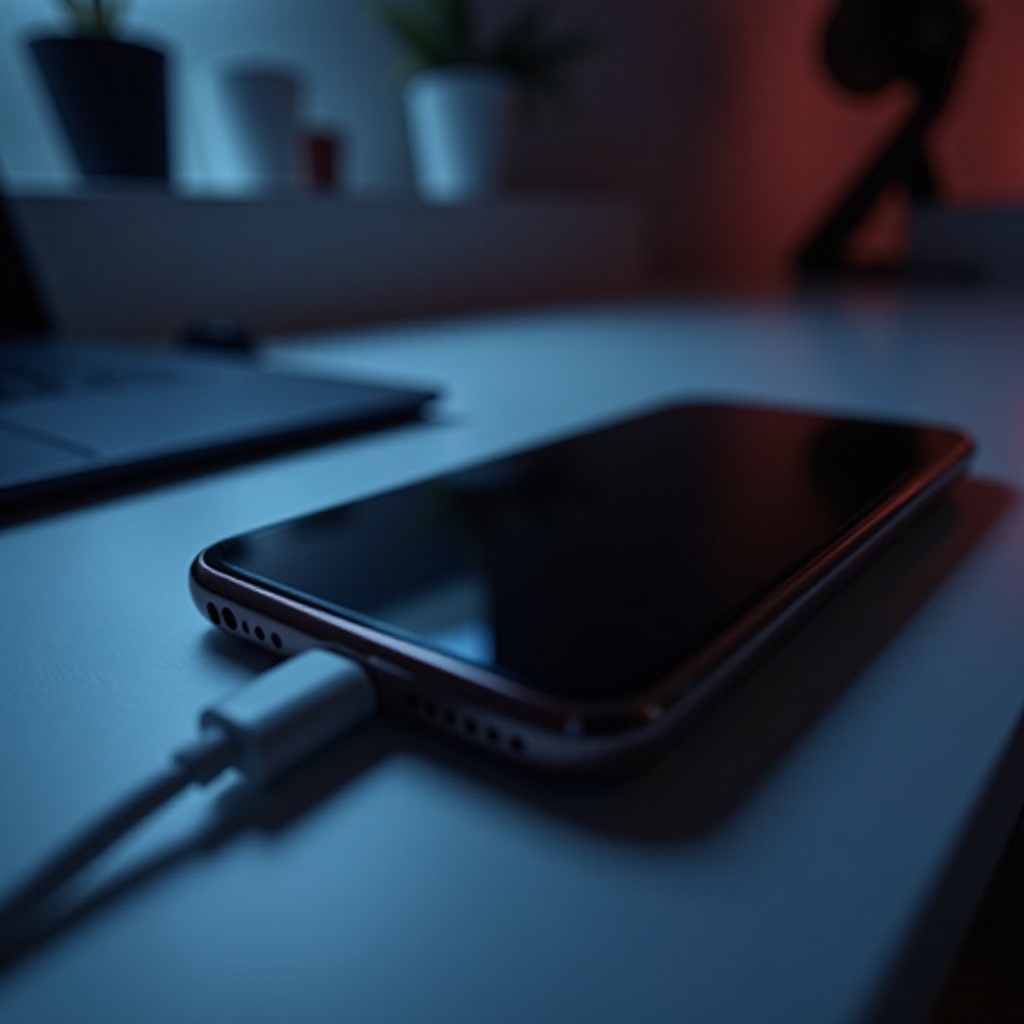
Initial Checks and Basic Troubleshooting
-
Inspect the Charging Cable and Adapter
Examining your charging cable and adapter is a fundamental step. Check for visible signs of damage such as fraying or bending. Ensure the adapter fits correctly into the power outlet and the cable connects securely to your iPhone. -
Examine the Charging Port
Dust or debris in the charging port can prevent proper connections. Inspect the port using a flashlight and, if necessary, gently clean it with a soft brush or a toothpick, taking care not to harm the delicate connectors. -
Try a Different Power Source
Test your charging setup in a different power outlet or connect your iPhone to a computer’s USB port to see if it begins charging, indicating the fault may lie with the original power source.
Should these initial efforts not resolve the issue, it might be time to consider more advanced troubleshooting methods, as the problem could be more complex than initially perceived.
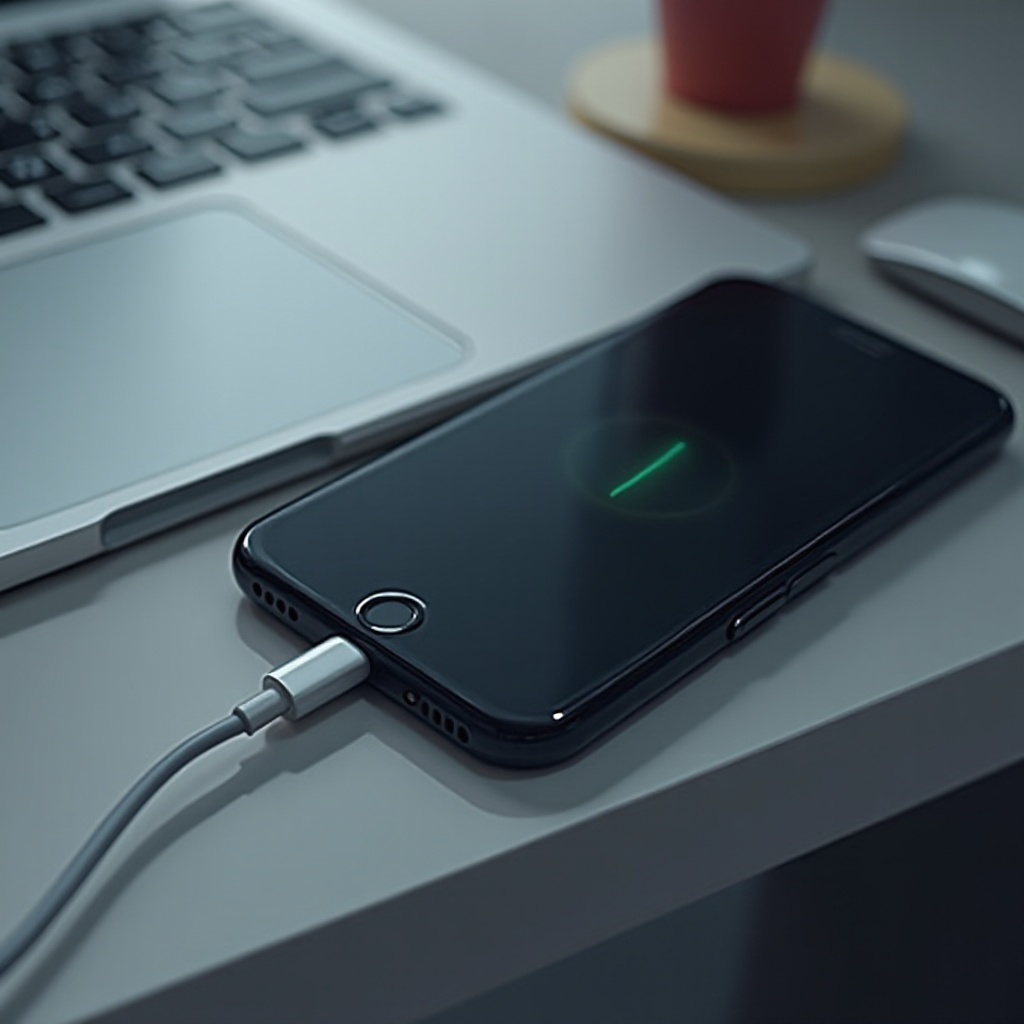
Advanced Solutions
-
Perform a Force Restart
A force restart can rectify temporary software glitches. For iPhones with Face ID, quickly press and release the volume up button, press and release the volume down button, and then press and hold the side button until the Apple logo appears. For other models, a combination of holding down the power and volume buttons should suffice. -
Check for Software Issues
Connect your iPhone to a computer and use iTunes or Finder to check for any available software updates. Sometimes, updating the software may fix specific bugs causing charging issues. -
Reset Device Settings
If software glitches persist, resetting all settings might help. Go to Settings > General > Transfer or Reset iPhone > Reset > Reset All Settings. Note that this won’t erase your data but will reset system settings.
In case these methods don’t fix the problem, it’s wise to consider professional help to avoid further damage.
When to Seek Professional Help
If your iPhone still doesn’t show the charging symbol, there might be an underlying hardware problem. Persistent charging issues could necessitate expert examination. Visiting an Apple Store or a certified repair center ensures your device is handled by professionals capable of diagnosing and repairing hardware faults effectively.
Knowing when to consult with professionals can prevent further damage and ensure that warranties remain intact.
Preventative Measures for the Future
-
Regular Maintenance Tips
Keep the charging port clear of debris, and clean it regularly to avoid clogs. Avoid exposing your iPhone to dusty or wet environments. -
Best Practices for Charging
Use only Apple-approved chargers and cables, disconnect your device when fully charged, and aim to maintain your battery between 20% and 80% for optimal performance. -
Battery Health Monitoring
Regularly check battery health by going to Settings > Battery > Battery Health to stay alert to its condition and act before issues arise.
Incorporating these preventative steps into your routine can help maintain your iPhone’s performance and battery life, minimizing problems.
Conclusion
Dealing with an iPhone that doesn’t display a charging symbol can be frustrating, but knowing how to troubleshoot and when to seek help can make all the difference. Start with basic checks, consider advanced troubleshooting if needed, and don’t hesitate to seek professional support. With regular maintenance, you can keep your iPhone in excellent working condition, ensuring its longevity and reliability.
Frequently Asked Questions
Why is my iPhone not showing the charging symbol when dead?
This issue can be due to hardware problems like a faulty cable or software glitches, such as system crashes or outdated software.
Can a faulty charging cable cause my iPhone not to show the charging symbol?
Yes, a damaged or frayed charging cable can impede electrical connection, leading to charging issues.
Should I worry if my iPhone doesn’t show the charging symbol only occasionally?
Occasional issues might not signal a serious problem, but repeated occurrences should be investigated to prevent future issues.