14 Aug 2026
Post by Callie
Introduction
When your iPhone’s WiFi option appears greyed out, it can interrupt your daily connectivity needs. Such disruptions can prevent you from using essential apps and communicating effectively. This article provides practical solutions to address the iPhone WiFi grey issue. Alongside fixing the problem, we also delve into its causes and offer preventive strategies to keep your device running smoothly.
Understanding the iPhone WiFi Grey Issue
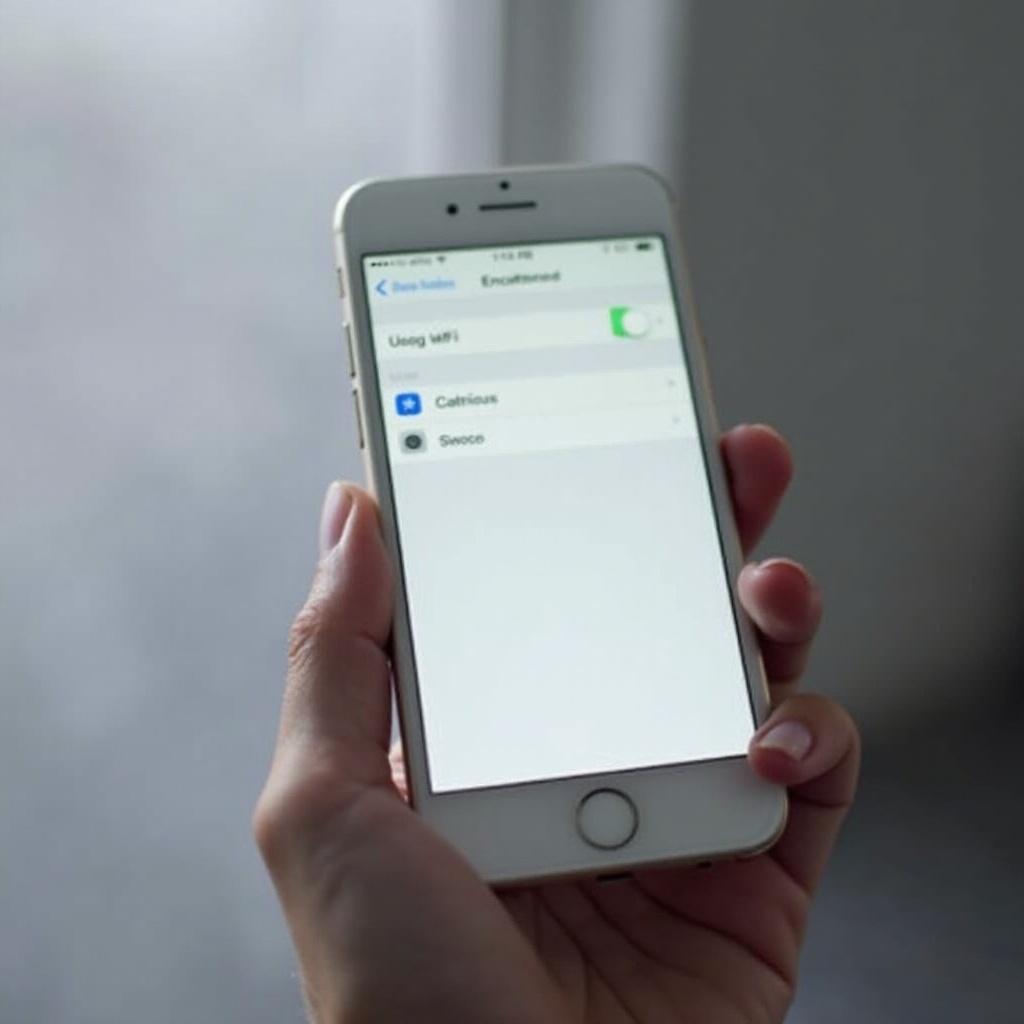
The iPhone’s WiFi grey issue manifests when the WiFi toggle is unresponsive. This condition hinders your ability to connect to networks, impacting everyday use. By understanding this problem, you can implement targeted solutions to resolve it more effectively, ensuring that your device’s connectivity is reinstated promptly.
Common Causes of the iPhone WiFi Grey Problem
Several issues can cause the iPhone WiFi button to gray out. Recognizing these causes helps in determining the right fixes and prevents future occurrences.
Software-Related Causes
Software issues, including glitches and outdated iOS versions, can interfere with network functionality. Such software disruptions often arise post-update or due to incomplete installations. Making sure your iPhone’s software is up-to-date may prevent or solve connectivity issues.
Hardware Malfunctions
Physical damage or component wear and tear can lead to connectivity issues. Specifically, the WiFi antenna might become dysfunctional. Evaluating the device’s hardware is essential to identify if these are causing the greyed-out issue.
Environmental or Usage Factors
External factors such as environmental conditions and accidental drops can affect your iPhone’s WiFi capability. Understanding how these aspects influence device performance can help in diagnosing and resolving the issue.
Connecting these possible causes logically leads us to explore systematic troubleshooting steps.
Step-by-Step Troubleshooting
Having identified potential causes, here are specific steps to fix the greyed-out WiFi.
- Restarting Your iPhone
-
Reboot your iPhone by pressing and holding the power button until the slider appears, then swipe to power off. Wait a few moments before turning it back on.
-
Updating iOS
-
Navigate to Settings > General > Software Update to check for updates. Installing the latest iOS version can fix known bugs affecting WiFi functionality.
-
Resetting Network Settings
- Head to Settings > General > Reset > Reset Network Settings. This resets configurations but will require re-entering your WiFi passwords.
When primary steps don’t resolve the issue, more advanced fixes might be necessary.
Advanced Solutions
For issues that persist beyond basic troubleshooting, deeper interventions may be required.
Restoring iPhone to Factory Settings
Before proceeding, back up your data. Then, go to Settings > General > Reset > Erase All Content and Settings. This process will reinstall iOS, removing software-related barriers.
Professional Assistance Options
If problems remain unresolved following a factory reset, it’s advisable to seek professional diagnostic services. Contact Apple Support or visit an Apple Store for detailed assessments and potential repairs.
Finally, implementing preventive measures can maintain your iPhone’s operational integrity.
Preventive Measures
Preventing recurrence of the WiFi grey issue is crucial for ensuring uninterrupted device function. Here are some tips:
Regular Software Updates
Updates often include fixes for connectivity problems. Enabling automatic updates ensures you won’t miss important improvements.
Avoid Unauthorized Apps
Download apps exclusively from the App Store to minimize risk. Unauthorized apps may introduce harmful software affecting your device’s performance.
Conclusion
Tackling the iPhone WiFi grey issue starts with understanding and applying the right solutions. Whether it’s a simple restart or seeking professional help, prompt action can restore your device’s connectivity. Incorporating preventive strategies further enhances your iPhone’s reliability and usability.
Frequently Asked Questions
Why is my iPhone’s WiFi option greyed out even after updating?
Persisting issues after updates may indicate hardware malfunctions. Consider a hardware inspection or professional service.
Can a software glitch cause the WiFi to grey out?
Yes, software glitches are common causes. Regularly updating your iOS and resetting network settings can often resolve these issues.
What should I do if none of the solutions work?
If initial solutions don’t work, seek a professional evaluation. Visit an Apple Store or certified service provider for assistance.