26 Jun 2026
Post by Callie
Introduction
The seamless integration of art and technology has transformed how we create and consume content. The iPad, especially with its sleek design and powerful features, allows artists and hobbyists to express their creativity like never before. With the Notes app, Apple provides a convenient, yet sophisticated platform for drawing and sketching. This guide explores how to efficiently use the iPad and the Notes app to produce remarkable artwork, focusing on the tools and techniques necessary for success.
Setting Up Your iPad for Drawing
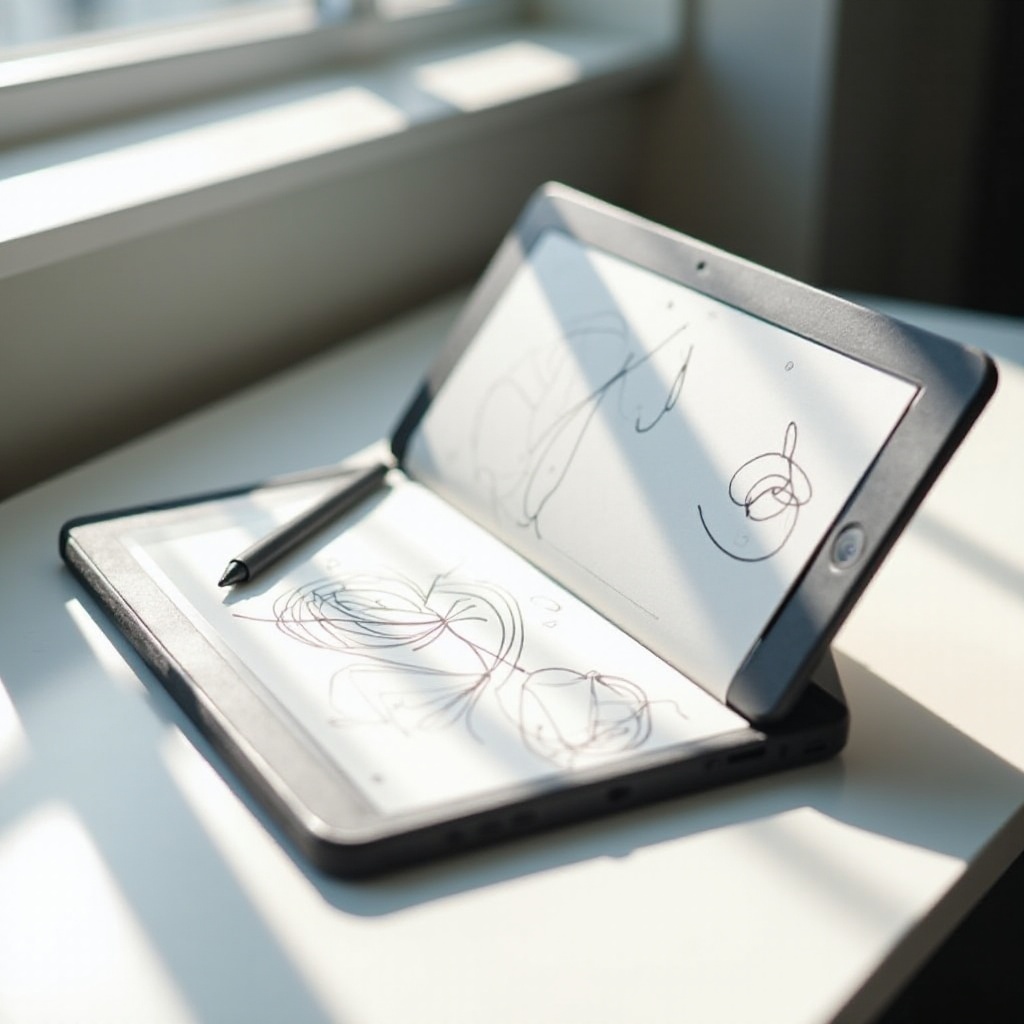
Before embarking on your drawing journey, ensure your iPad is optimized for artistic creation. Choose an iPad model that meets your needs; the iPad Pro offers superior performance with its enhanced processor and display, but other models can also serve you well with the right setup.
When considering accessories, the Apple Pencil stands out as an essential tool. It provides precise control similar to traditional drawing instruments. Depending on your iPad model, ensure compatibility with the Apple Pencil, or explore other high-quality stylus options.
Keeping your software updated is another crucial step. Regular updates not only improve security but often introduce new features and improvements that can enhance your drawing experience.
Introduction to the Notes App Drawing Tools
With your iPad set up and ready, it’s time to delve into the Notes app. The app’s drawing capabilities are more extensive than they first appear, offering a range of tools tailored to each user’s needs.
Upon opening a note and selecting the drawing option, you’ll access various tools, such as pens, markers, and erasers. These can be adjusted for size, opacity, and color, enabling customization to fit your drawing style.
Navigate through these options, familiarizing yourself with their functionalities. This foundation is essential as you progress from basic sketches to more detailed illustrations.
Basic Drawing Techniques in Notes
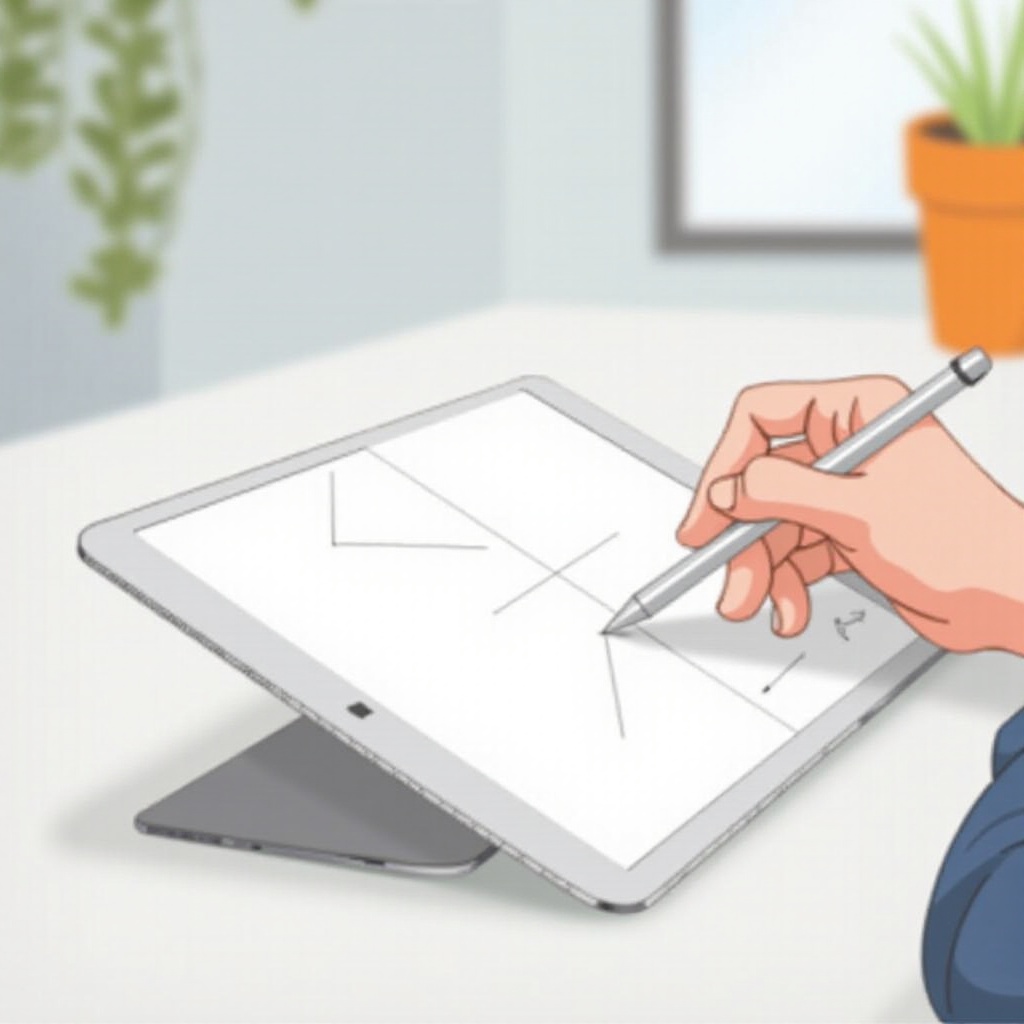
Grasping the basics of drawing in the Notes app is fundamental to unlock its full potential. The Apple Pencil, with its pressure sensitivity and tilt recognition, replicates the experience of using traditional drawing tools.
Begin by practicing simple shapes and lines. This exercise helps you become accustomed to the digital interface and understand how your inputs translate into strokes on the screen. Use the built-in ruler for precision, experiment with various brush sizes, and note how these adjustments affect your art. Solidifying these skills will serve as the building blocks for more complex designs.
Advanced Drawing Features and Tips
Once you’ve mastered the basics, the Notes app offers more advanced features to explore. Start by utilizing layers, though simplified in this app, you can practice layering techniques and masking to add complexity to your drawings.
Incorporate color and shading to bring your artwork to life. The color wheel allows for a range of hues to choose from, while shading can add depth and perspective. Experimenting with these features enhances your compositions, showcasing the versatility and depth possible within the app.
Saving and Sharing Your Drawings
After creating your masterpiece, sharing it can be as rewarding as the process itself. The Notes app supports different export formats, including PDF and image files, making it easy to adapt to various platforms and needs.
To share a drawing, follow these steps:
1. Tap the share icon within the Note.
2. Select your desired format.
3. Choose from options like AirDrop or email to distribute your work.
Effortless sharing options allow you to present your artwork to a wider audience, encouraging feedback and fostering collaboration.
Troubleshooting Common Issues
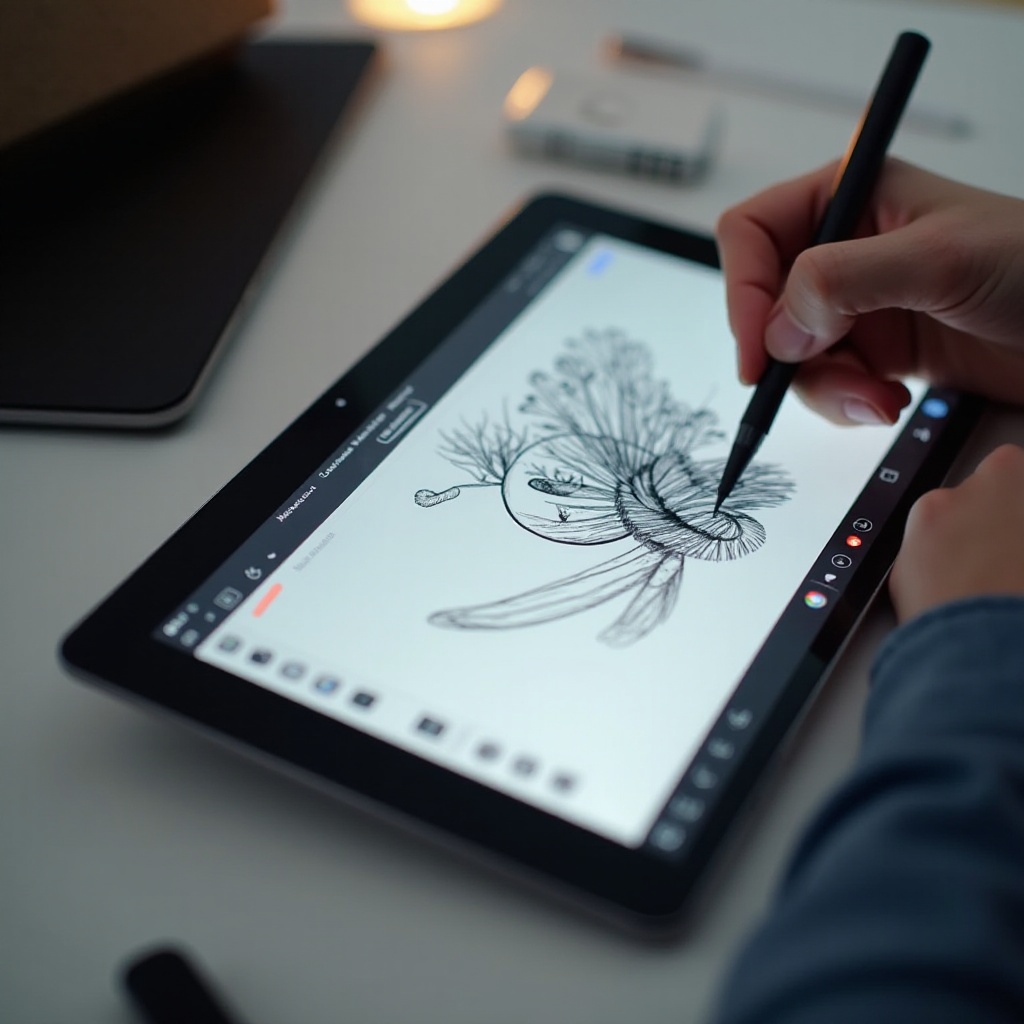
Even in the best setups, issues may arise. Commonly, users face connectivity problems with the Apple Pencil. Ensure your Pencil is charged and properly paired. Re-pairing can solve persistent connectivity issues.
If app performance dips, consider closing background apps to free memory or restarting your iPad, which can restore functionality and prevent future hiccups.
Addressing these challenges promptly maintains a smooth, uninterrupted drawing experience, ensuring you stay focused on creating.
Conclusion
Leveraging the power of the iPad’s Notes app elevates your drawing capabilities, blending creativity with technology. This guide has outlined essential preparatory steps, basic and advanced techniques, and tips for saving and sharing your work. As you continue to practice and explore, you’ll find new ways to express your artistic vision. Embrace the digital art landscape and start your creative journey today.
Frequently Asked Questions
How do I customize the drawing tools in the Notes app?
Customize tools by selecting a tool and adjusting its size, opacity, and color in the toolbar. This personalization enhances your drawing style.
Can I use third-party styluses with the Notes app?
Yes, third-party styluses can be used, but the experience may vary. Ensure compatibility with your iPad model for optimal results.
Is it possible to import images into my Notes drawings?
Yes, you can import images by tapping the camera icon in the note. This feature allows for creative backgrounds or inspirations within your work.