3 Jul 2026
Post by Callie
Introduction
The Mac Mini brings powerful computing into a compact device. However, setting it up without a keyboard poses unique challenges. Whether dealing with a malfunctioning keyboard or simply waiting for one to arrive, you can still navigate the setup using built-in features. This guide will take you through the process step-by-step, from leveraging accessibility features to establishing remote connections.
Preparing Your Mac Mini Without a Keyboard
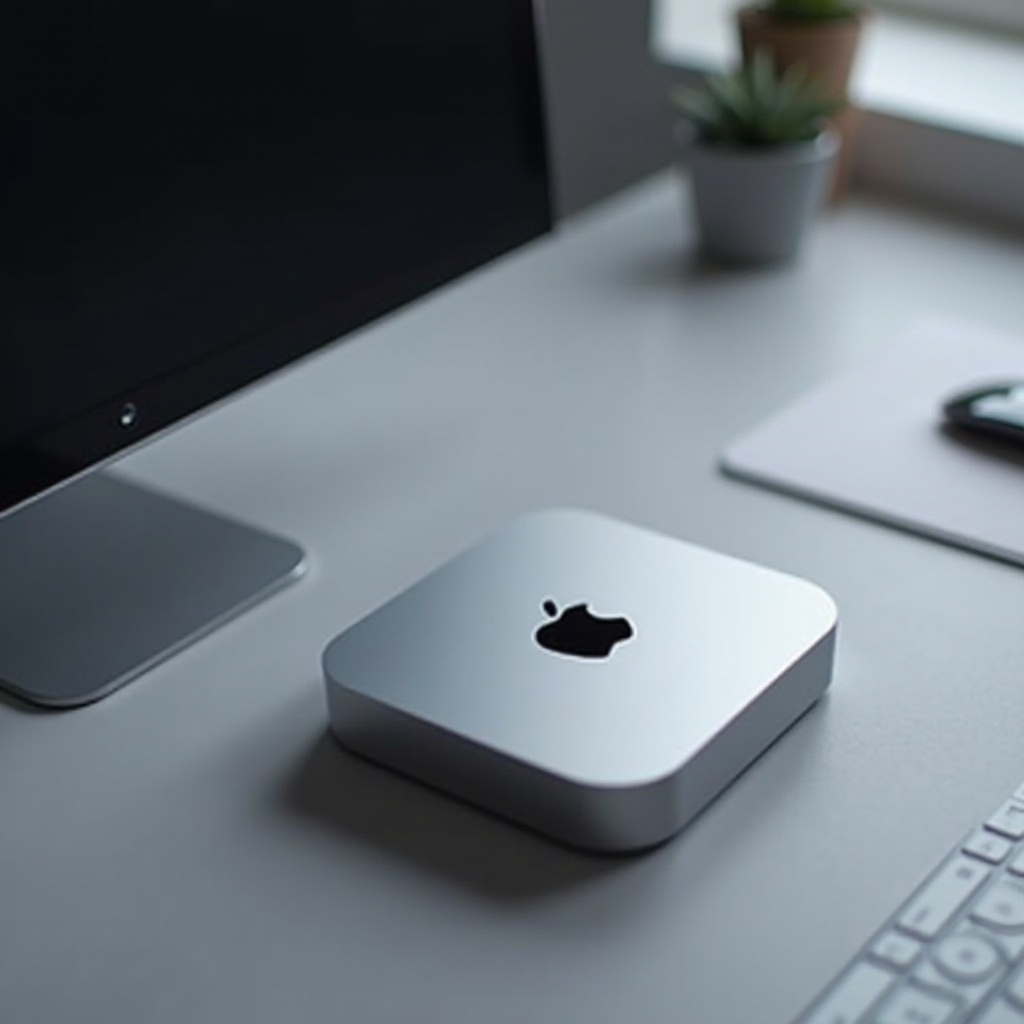
Before diving into the setup, ensure you have all necessary equipment at hand.
-
Gathering Essential Accessories: Begin by collecting a monitor, mouse, and power cables. These components are vital when setting up without a keyboard.
-
Ensuring Display and Power Readiness: Connect the Mac Mini to a monitor via HDMI, and ensure the power adapter is correctly plugged in. Verify that your monitor is on and set to the right input.
-
Overview of Setup Challenges: Navigating without a keyboard requires using touch and voice controls initially. Exploring remote access tools and network connections will prove beneficial.
Utilizing Accessibility Features and Voice Control
Once you’re set up physically, focus on accessibility features of the Mac Mini to aid your navigation.
-
Activating VoiceOver for Navigation: As a built-in screen reader, VoiceOver enables navigation on the Mac Mini through gestures made using a mouse. Enable it by pressing ‘Command + F5’ with a virtual keyboard or consult an online guide if lacking initial input.
-
Setting Up and Using Siri on Mac Mini: Siri offers hands-free assistance and can facilitate setup activities. Locate Siri under System Preferences, turn it on, and use commands like ‘Open System Preferences’ or ‘Connect to Wi-Fi’.
-
Enhancing Usability with Accessibility Options: Find additional accessibility tools like Zoom and AssistiveTouch in System Preferences. These enhance the setup process by aiding navigability.
Transitioning into more control over your setup, explore remote desktop connections and utilizing Bluetooth devices.
Connecting via Remote Desktop and Bluetooth Devices
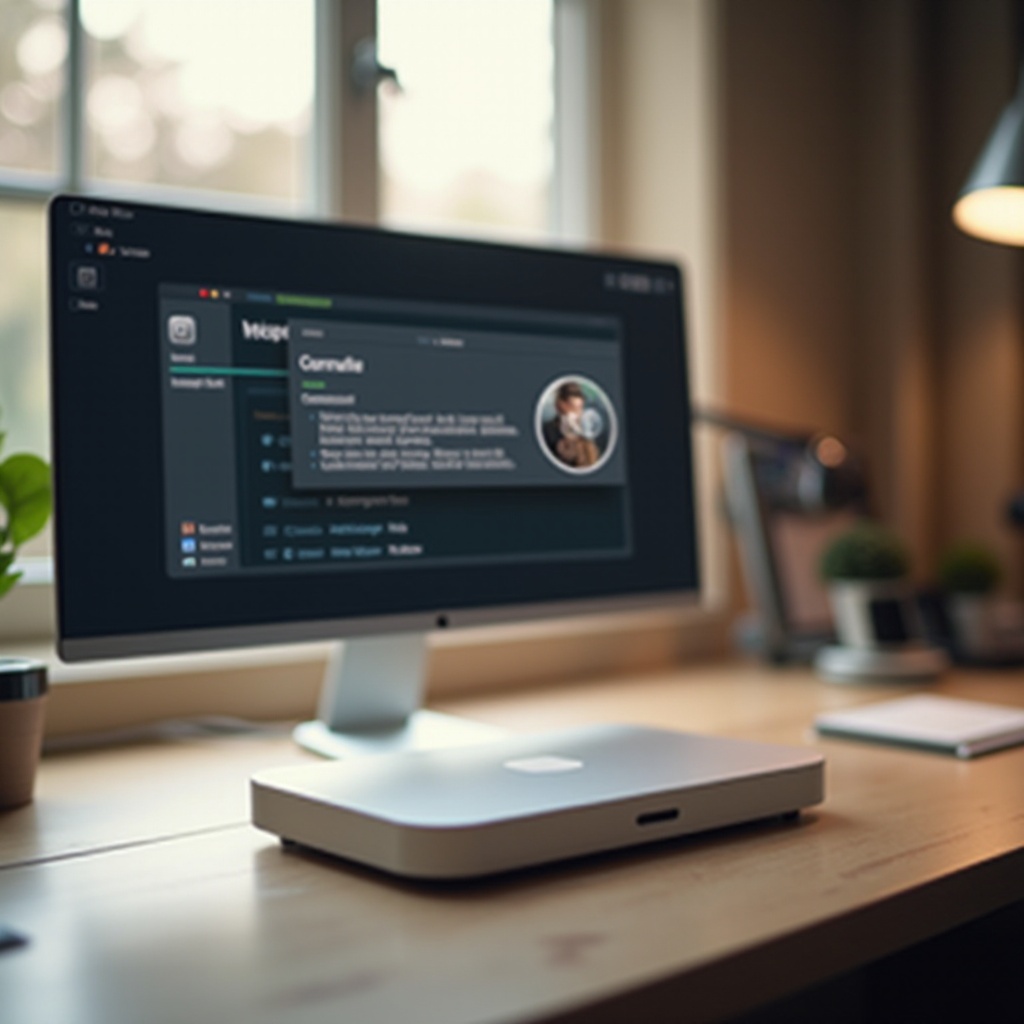
Remote desktops and Bluetooth technology unlock diverse ways of interacting with your Mac Mini.
-
Establishing a Remote Desktop Connection: Remote desktop apps let you operate your Mac Mini from another device. Apps like TeamViewer or AnyDesk work well. Install the app on both devices and follow their specific connection instructions.
-
Configuring Screen Sharing from Another Device: Screen sharing utilizes another Mac or iOS device. Enable it under System Preferences > Sharing on your Mac Mini. Connect from another Mac using ‘Finder’ or with ‘VNC Viewer’ on iOS.
-
Pairing Bluetooth Keyboard or Mouse: A Bluetooth keyboard or mouse adds versatility. Turn these devices on and navigate to System Preferences > Bluetooth to pair them via VoiceOver.
Having secured varied control pathways, focus next on configuring your Mac Mini’s system and network preferences.
Configuring System Preferences and Network Setup
Organizing system settings and network connections ensures stability during usage.
-
Adjusting System Preferences for Ease of Use: Customize the settings found under System Preferences > Accessibility to improve usability. Supplementary options include voice commands and keyboard shortcuts, benefiting overall interaction.
-
Setting Up Wi-Fi and Internet Connections: Simplify Wi-Fi setup via System Preferences > Network with accessibility tools, turning Wi-Fi on and selecting your network’s name. Input passwords with Siri or VoiceOver for secure connection.
Once your system and network configurations are well-tuned, you are primed to tackle any ongoing technical issues.
Troubleshooting Common Setup Issues
Despite preparations, occasional troubleshooting may be necessary.
-
Solving Connection Problems with Bluetooth Devices: If Bluetooth devices fail to connect, restart both the devices and your Mac Mini. Re-pair when necessary, confirming devices are charged.
-
Ensuring Smooth Remote Desktop Operation: For lag or disconnection issues while using remote access, ensure devices share the same network and adequate internet bandwidth is available.
Successfully managing such issues enables a consistent and effective Mac Mini setup experience.
Conclusion
Setting up a Mac Mini without a keyboard may seem daunting at first, but using the steps provided—including accessibility options, remote desktop software, and Bluetooth connectivity—your setup experience can still be smooth and highly productive.
Frequently Asked Questions
Can I set up my Mac Mini with just a mouse?
Yes, with VoiceOver, you can navigate the setup using a mouse, allowing progression without a keyboard.
What if I don’t have an external display available?
Without an external display, use remote access software to operate your Mac Mini from another device temporarily.
Is it possible to use an iPhone as a controller for my Mac Mini?
Yes, an iPhone can function as a controller using apps like Remote Mouse, replicating keyboard and mouse functions.