3 Apr 2026
Post by Callie
Introduction
Mistakes in typing are inevitable, even on an iPhone, renowned for its intuitive design. However, rectifying these mistakes doesn’t have to be a hassle. For iPhone users, knowing how to efficiently undo text can significantly enhance the user experience. This guide will explore various methods to undo text actions, from using gestures to troubleshooting common issues.
The Basics of iPhone Text Editing
Before delving into specific undo techniques, it is worthwhile to understand the basics of text editing on your iPhone. Successfully maneuvering these fundamentals lays the groundwork for mastering more advanced features.
- Navigating the Text Field: To precisely move your cursor, simply tap where you need to insert or delete text. For pinpoint accuracy, press and hold to engage the magnifying glass.
- The Role of the On-Screen Keyboard: Familiarity with the keyboard layout can streamline your typing. Use the space bar for cursor movement and take advantage of predictive text for quicker input.
These basic skills will aid you as you learn to utilize the undo feature effectively.
How to Undo Text on iPhone
iOS offers intuitive methods to quickly correct errors with ease. Knowing these gestures can make text editing simpler.
- Using Shake to Undo: When you make a mistake, shaking your iPhone gently will trigger a pop-up to ‘Undo Typing.
- Three-Finger Swipe Gesture: Swipe left with three fingers to undo your last action. To redo, swipe right with the same gesture.
- Undo Through the Edit Menu: Tap and hold on a text area to view the edit options. Choose ‘Undo’ to reverse the most recent change.
These techniques can significantly ease the process of correcting mistakes, promoting a smooth user experience.
Customizing Your Undo Settings
Customization ensures your iPhone’s undo functions suit your individual needs, enhancing user comfort.
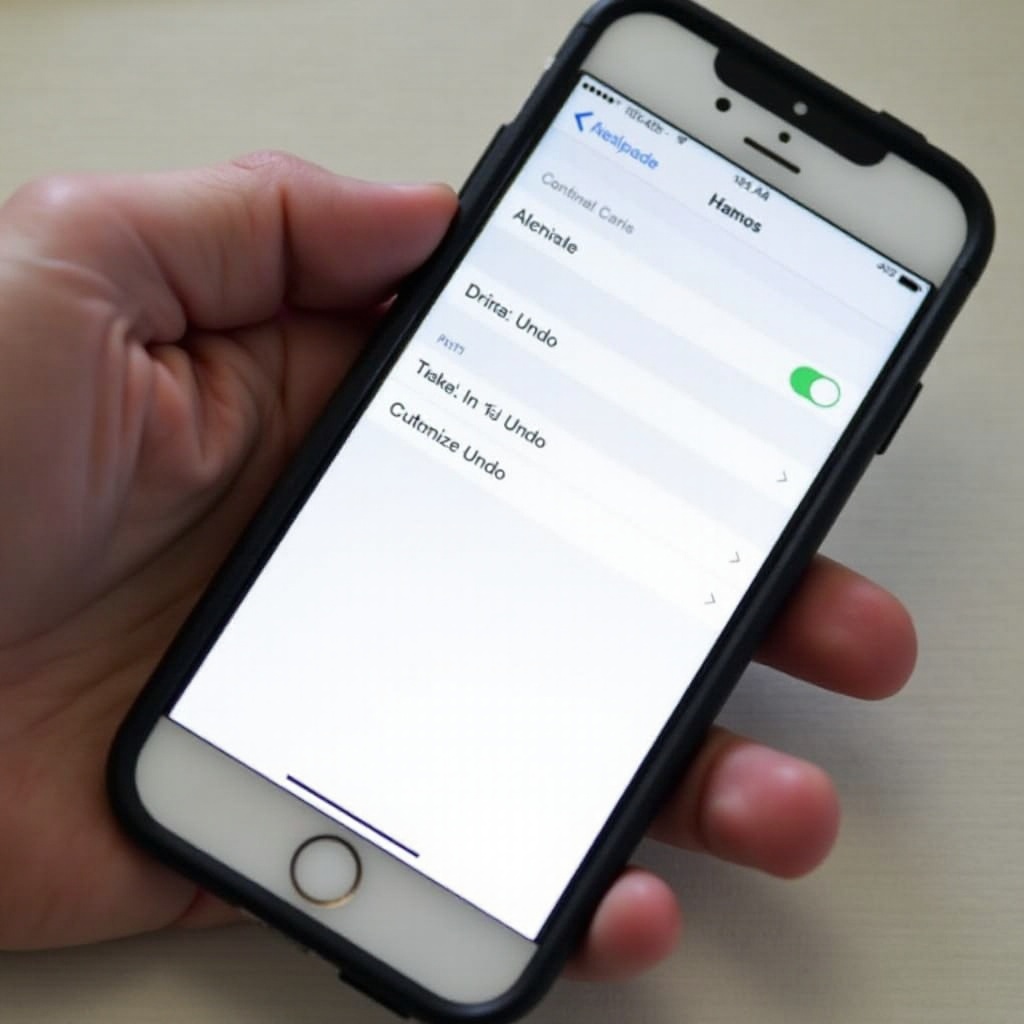
- Adjusting Sensitivity of Shake to Undo: If the shake feature’s sensitivity feels off, go to Settings > Accessibility > Touch to make adjustments.
- Exploring Accessibility Options: Access accessibility settings to explore accommodations that may simplify undoing actions for you, found under Settings > Accessibility.
With these adjustments, your iPhone can be tailored to better support your editing habits.
Alternatives to Undoing Text
Having alternative methods in your toolkit can provide flexibility, especially when standard undo features aren’t a perfect fit.
- Copy and Paste Techniques: Select and copy the text, then paste it elsewhere to correct errors without the need for standard undo actions.
- Third-Party Keyboard Apps: These apps often offer enhanced undo/redo features, providing more robust editing capabilities.
Employing these alternatives provides additional flexibility in managing and correcting text on your device.

Troubleshooting Undo Functionality
Issues with undo functions can occur, but they are usually straightforward to resolve.
- When the Undo Feature Doesn’t Work: Begin by restarting your device, as this often resolves minor, temporary glitches.
- Managing Keyboard Settings: Confirm that your iOS is up to date, as updates may rectify bugs affecting text editing features.
Troubleshooting this aspect ensures your text editing experience remains smooth and efficient.
Conclusion
Mastering the undo function on your iPhone is crucial for efficient typing. By embracing these gestures and customization options, you can readily manage text corrections. With a little practice, you’ll find that correcting errors is quick and stress-free.
Frequently Asked Questions
How can I enable the Shake to Undo feature on my iPhone?
To enable Shake to Undo, go to Settings > Accessibility > Touch, then toggle on ‘Shake to Undo’.
Is there an alternative method to undo text if gestures are disabled?
Yes, you can use the edit menu. Tap and hold in the text area, then select ‘Undo’ from the pop-up menu.
What can I do if my iPhone’s text undo feature is unresponsive?
First, try restarting your device. Ensure your iOS is updated, and contact Apple Support if issues persist.