17 Jul 2026
Post by Callie
Introduction
Photos can accumulate rapidly on your iPad, cluttering your space and slowing down your device. Learning how to effectively delete multiple pictures can help maintain your iPad’s performance and keep your photo library organized. This guide breaks down the process into easy steps, ensuring a seamless experience.

Understanding iPad Photo Management
To effectively manage your photo library, it’s essential to understand how your iPad stores images. Pictures are organized in the Photos app, categorized by Moments, Collections, and Years, facilitating easy navigation. Despite this organization, an overloaded photo library can impact browsing speed and device performance, so regular deletion is crucial.
Clearing unwanted pictures not only streamlines navigation but also frees up valuable storage space. We’ll guide you through this process to help you maintain an efficient and organized photo system.
Step-by-Step Guide to Deleting Multiple Photos
The Photos app on your iPad makes it straightforward to delete multiple photos at once. Follow these steps to effectively remove unwanted pictures:
-
Accessing the Photos App: Open the Photos app on your iPad. Find the ‘Photos’ or ‘Albums’ tab where the images you want to delete are located.
-
Using the Select Feature for Bulk Deletion: Tap ‘Select’ in the top right corner. You can then tap on each picture you wish to delete, or use a swipe gesture to select multiple images swiftly.
-
Managing the Recently Deleted Folder: Once selected, press the trash can icon to move these photos to the Recently Deleted folder. To permanently delete them and free up storage, go to the Recently Deleted album, select ‘Delete All’, or choose individual photos to erase.
Now that you know the basic deletion steps, let’s explore how iCloud can simplify photo management across devices.

Deleting Photos via iCloud
iCloud offers a seamless way to manage your photo library across all Apple devices. Changes made on one device sync instantly with the others, making photo management easier.
-
Enabling iCloud for Photo Management: Ensure that the ‘iCloud Photos’ option is enabled. Navigate to ‘Settings’ > [your name] > ‘iCloud’ > ‘Photos’ and toggle on ‘iCloud Photos’. This feature keeps your collection updated across all your devices.
-
Syncing Changes Across Devices: Deleting photos on your iPad will also remove them from iCloud, consequently freeing space on all synced devices. This seamless synchronization helps you maintain an organized library without duplicating efforts across devices.
While iCloud provides a convenient method, third-party apps can further enhance your photo management capabilities.
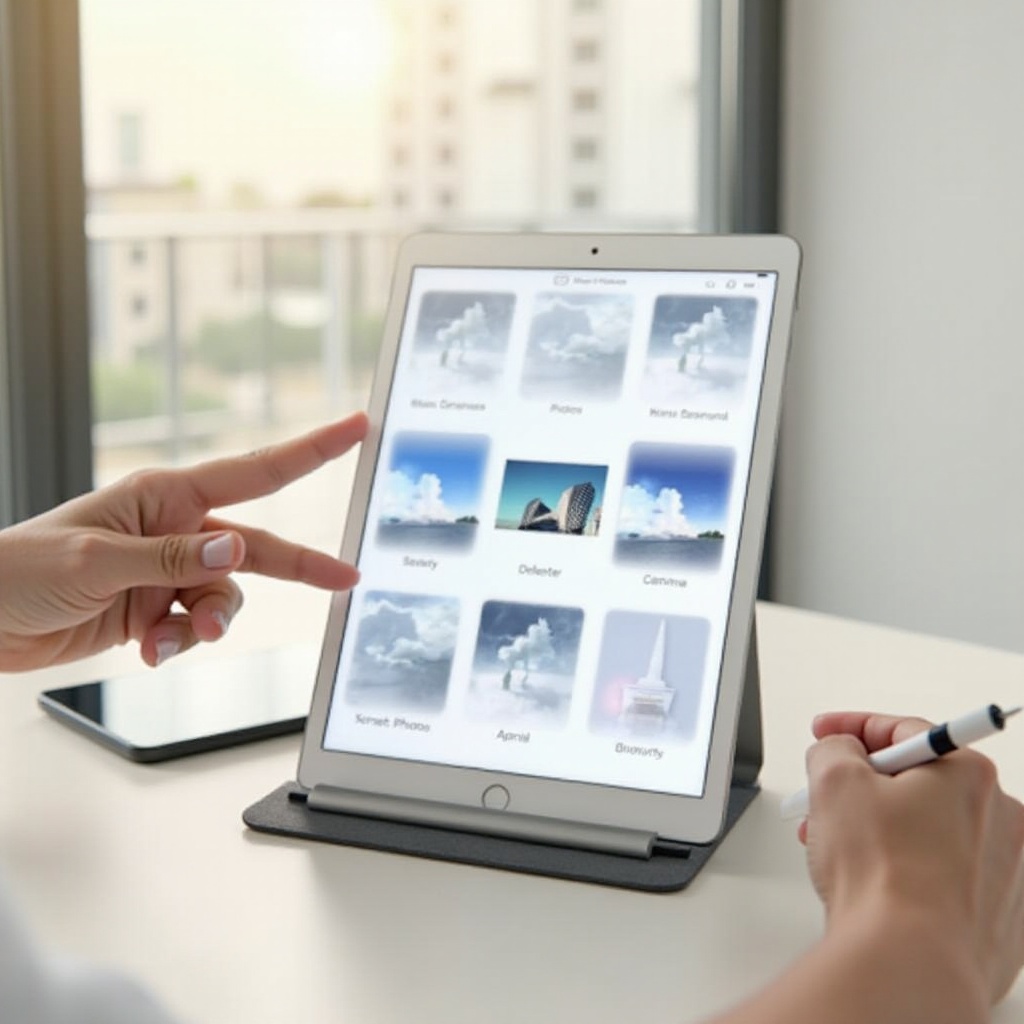
Third-Party Apps for Efficient Photo Deletion
Third-party applications offer additional functionality for organizing and managing photos.
-
Recommended Apps for Photo Management: Consider using apps like Google Photos, Gemini Photos, or Slidebox, which provide advanced tools for sorting, detecting duplicates, and organizing your library.
-
How to Use Apps for Bulk Deletion: After installing and setting up your chosen app, follow its specific guidance to swiftly identify and delete unnecessary photos. These apps often have features to help you efficiently manage large photo libraries.
With these tools in hand, let’s delve into maintaining a clean and organized photo library through effective practices.
Best Practices for Maintaining a Clean Photo Library
Regular maintenance prevents clutter and keeps your device running smoothly. Here are some tips:
-
Setting Up a Regular Deletion Routine: Schedule regular check-ins, perhaps monthly, to review and delete non-essential photos. This practice helps manage your library proactively rather than reactively.
-
Backing Up Important Photos: Regularly back up valued images to iCloud or an external storage device. This precaution allows you to free up space on your iPad without losing treasured memories.
Despite diligent efforts, you may encounter issues that require troubleshooting. Let’s address some common problems and solutions.
Troubleshooting Common Issues
Occasionally, you might face challenges when managing photos. Here are ways to resolve them:
-
Resolving the Issue of Photos Reappearing: If deleted photos return, confirm they aren’t synced through another service like Google Photos. Removing them from all linked services should solve the issue.
-
Dealing with Insufficient Storage Warnings: If you continue to get storage warnings after deleting photos, clear your ‘Recently Deleted’ album. Check your iCloud settings to make sure storage is optimized. Consider upgrading your iCloud plan if needed.
By executing these strategies, you can ensure efficient management of your iPad’s photo library, enhancing both organization and performance.
Conclusion
Efficiently managing photo storage on your iPad is essential for optimal device performance. By mastering the steps for deleting multiple photos, leveraging iCloud for synchronization, and utilizing third-party apps, you maintain a streamlined and clutter-free photo library. Consistent practices and troubleshooting strategies secure an efficient and enjoyable user experience.
Frequently Asked Questions
How Can I Retrieve Accidentally Deleted Photos?
Photos are recoverable from the ‘Recently Deleted’ folder for 30 days. Simply navigate to the folder, select the images you want to restore, and tap ‘Recover’.
Is There a Limit to Deleting Photos at Once?
While there’s no specific limit, the process can be slower if you try to delete a large number of photos at once. For efficiency, consider breaking the task into smaller batches.
Does Deleting Photos from iPad Also Remove Them from iCloud?
Yes, with ‘iCloud Photos’ enabled, deletions on your iPad reflect across all connected devices, including iCloud, ensuring consistent synchronization.