5 Jun 2026
Post by Callie
Introduction
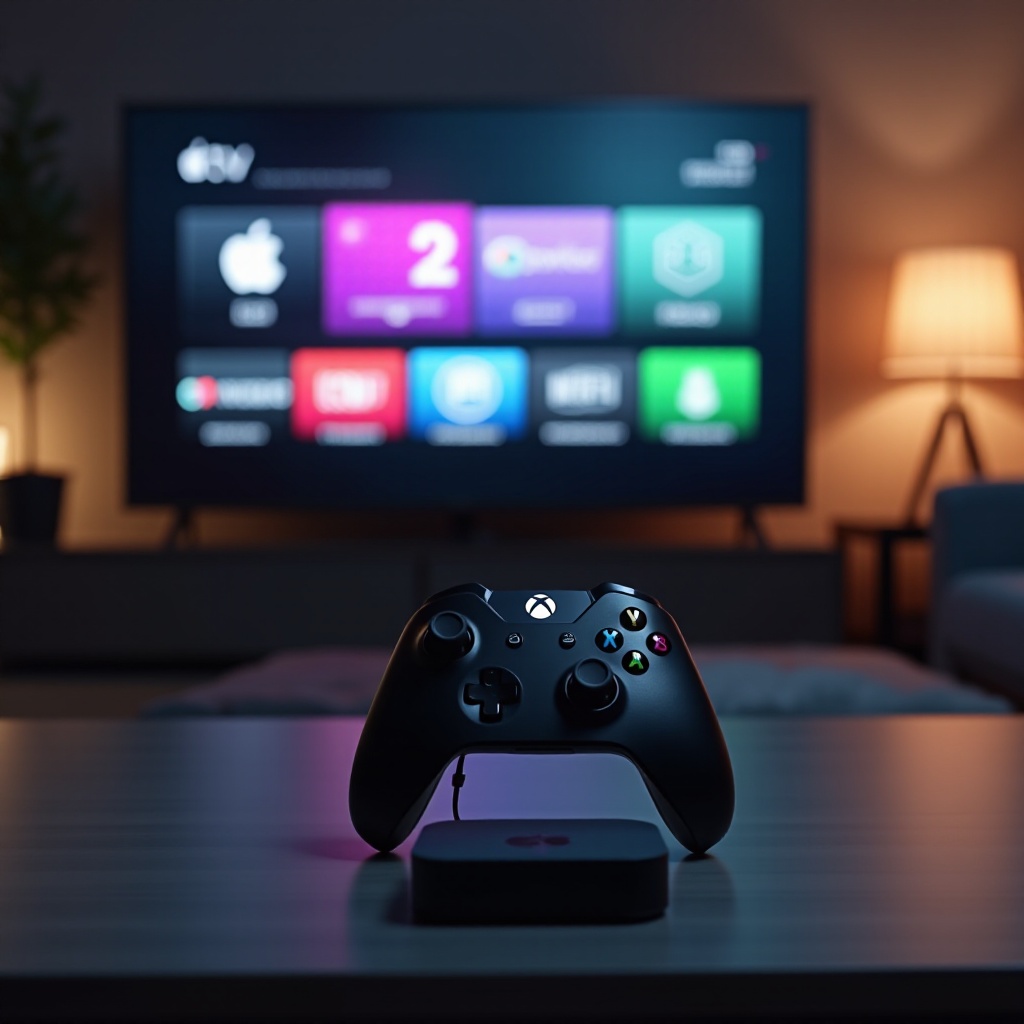
Enhancing your Apple TV gaming experience is as simple as connecting an Xbox controller. Known for its ergonomic design and responsive gameplay, the Xbox controller offers an upgrade to your current setup. Whether you’re diving into a challenging game or exploring new apps, linking these devices opens a realm of immersive possibilities. This guide will provide you with the necessary steps to connect your Xbox controller to Apple TV along with troubleshooting advice and gaming tips. Let’s unlock your Apple TV’s full potential today.
Checking Compatibility
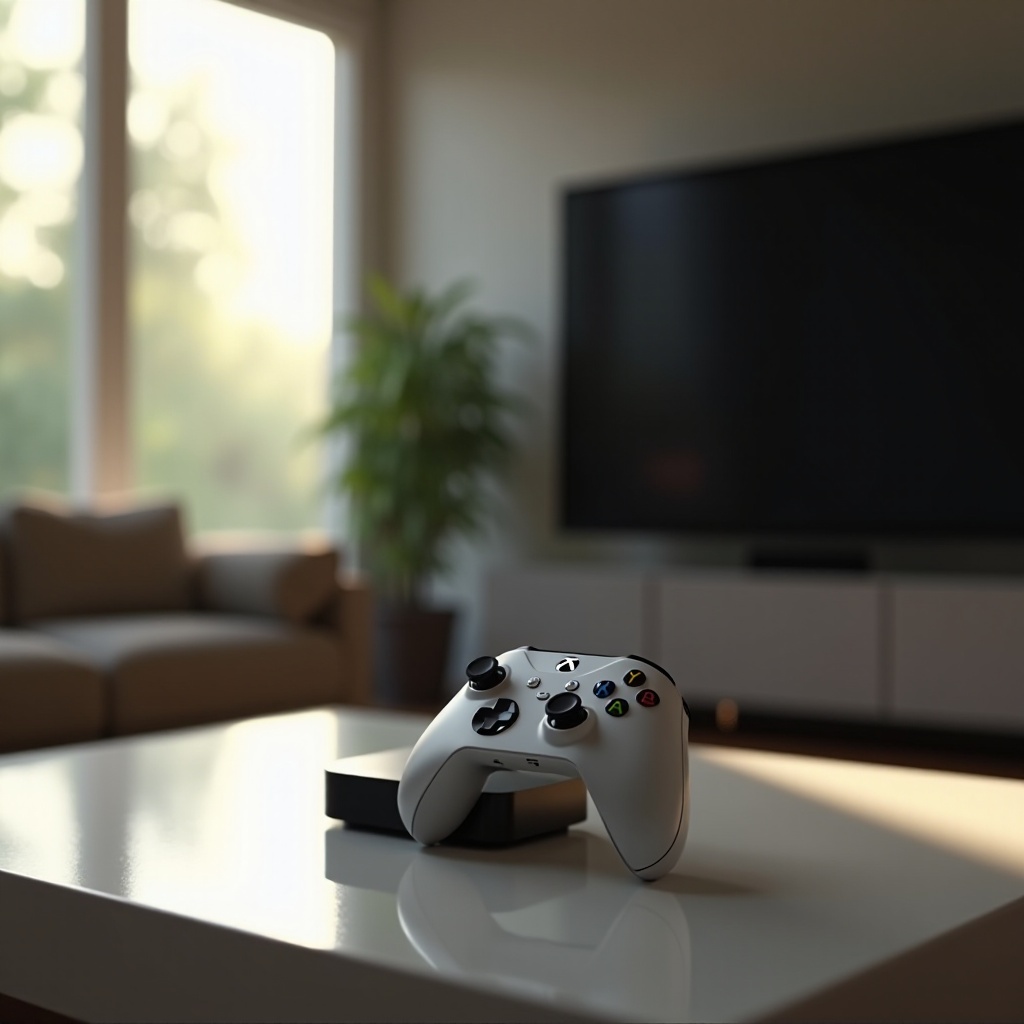
Prior to commencing the connection process, verifying compatibility is crucial. Most Xbox controllers, such as the Xbox Series X|S and Xbox One controllers, are supported by Apple TV. Ensure your Apple TV model supports Bluetooth—only the Apple TV HD and Apple TV 4K models include this feature. Confirming this information beforehand will save time and prevent unnecessary hassles, setting the stage for a straightforward connection.
Preparing Your Devices
Setting up your devices for connection begins with ensuring they are up-to-date. Start by updating your Apple TV to the latest tvOS version. Navigate to ‘Settings > System > Software Updates’ and select ‘Update Software’ if an update is available. Subsequently, update your Xbox controller’s firmware. Connect the controller to an Xbox console, then go to ‘Settings > Devices & connections > Accessories’. Select your controller, click ‘Device info > Firmware version’, and follow the prompts for updates. This preparation ensures a smooth pairing process and enhances device performance.
Step-by-Step Connection Process
With your devices prepared, you can now connect your Xbox controller to the Apple TV by following these steps:
- Activate Bluetooth on Apple TV: Open ‘Settings > Remotes and Devices > Bluetooth’.
- Put Xbox Controller into Pairing Mode: Power on the controller and press the ‘Pairing button’ until the Xbox logo flashes. This indicates the controller is in pairing mode.
- Pair Devices: On Apple TV, you’ll find your controller listed under ‘Other Devices’. Select it to complete the pairing process.
- Confirm Connection: Once successfully paired, the Xbox controller light will remain steady, signifying readiness for use.
This straightforward process usually results in a successful connection, but if issues arise, the following section covers resolutions.
Troubleshooting Common Issues
If you encounter connection issues, implement these troubleshooting strategies:
- Pairing Errors: Double-check that Bluetooth is enabled on both the Apple TV and the controller. Restarting both devices can resolve luckless pairing attempts.
- Lag or Connectivity Problems: Minimize wireless interference by placing the Apple TV and controller in closer proximity with a clear line of sight.
- Re-Pairing Issues: If the controller fails to connect, unpair it from any previous devices. Access ‘Settings > Remotes and Devices > Bluetooth’ on Apple TV, select the controller, and choose ‘Forget Device’. Retry the pairing process after unpairing.
These solutions tackle most connectivity problems, allowing for a seamless gaming experience.
Tips for Optimal Gaming Experience
After successfully connecting your Xbox controller, consider these tips for optimizing your gaming exploits:
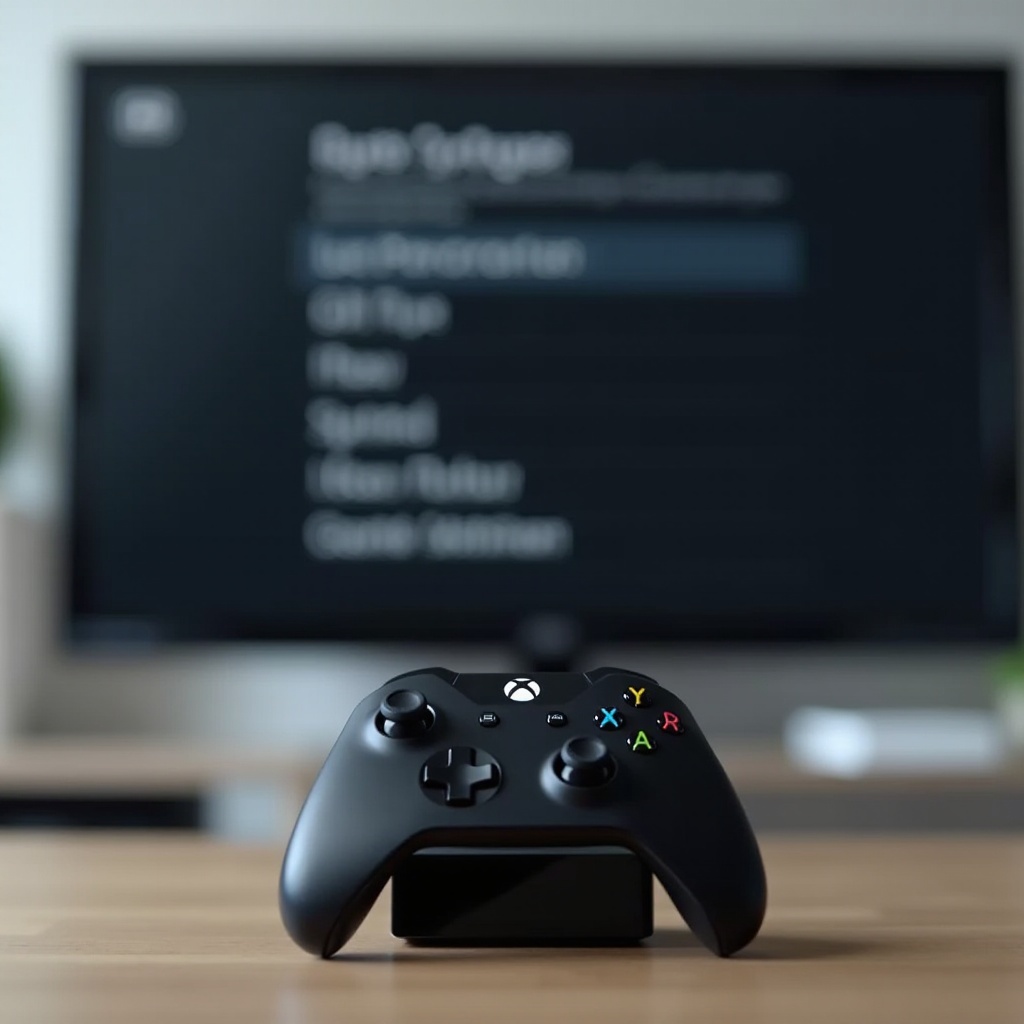
- Customize Controller Settings: Adjust settings such as sensitivity and button mapping in Apple TV settings for a personalized gaming experience.
- Explore Supported Games: Utilize apps on Apple Arcade and the App Store designed to leverage the capabilities of a controller. These applications often have specialized settings to enhance gameplay with an Xbox controller.
Implementing these strategies will further enrich your Apple TV gaming experience, offering you a tailored, high-performance interaction with the device.
Conclusion
Connecting an Xbox controller to your Apple TV unlocks a new realm of gaming possibilities, turning your device into a versatile gaming station. From confirming compatibility to executing the pairing process with precision and troubleshooting effectively, mastering these steps ensures that you’re prepared to engage with your favorite games like never before. Enhance your Apple TV entertainment experience today by integrating a world-class Xbox controller.
Frequently Asked Questions
Can I connect multiple Xbox controllers to Apple TV?
Yes, you can pair multiple controllers for multiplayer gaming. Follow the same pairing process for each additional controller.
Does connecting the Xbox controller drain more battery on Apple TV?
Connecting via Bluetooth has minimal impact on Apple TV’s power. However, it may affect the controller’s battery life over extended use.
What should I do if my controller disconnects frequently?
Frequent disconnections may be due to interference. Ensure a clear line of sight and try restarting both the Apple TV and the controller.